Title here
Summary here
Use Nova for WordPress® to create a WordPress site from a prompt and publish it to your domain. This tutorial explains the steps to turn your idea into a working WordPress site, such as a blog, a content site, or any site that you want to manage with WordPress themes and plugins.
For steps to create a website or web app with Nova instead, read our How to Create a Website or How to Create a Web Application documentation.
There are two ways to access Nova for WordPress from your cPanel account:
If you don’t see the Nova for WordPress option, your hosting package may not include it. Contact your hosting provider for more information.
After choosing the website you want to build, Nova prepares your workspace and opens Nova for WordPress.
Start by entering a prompt that describes your idea. For the best results, include details about the main goal of your WordPress site, which visitors you’re targeting, and any specific pages that you need. For more information, read our Prompting Best Practices documentation.
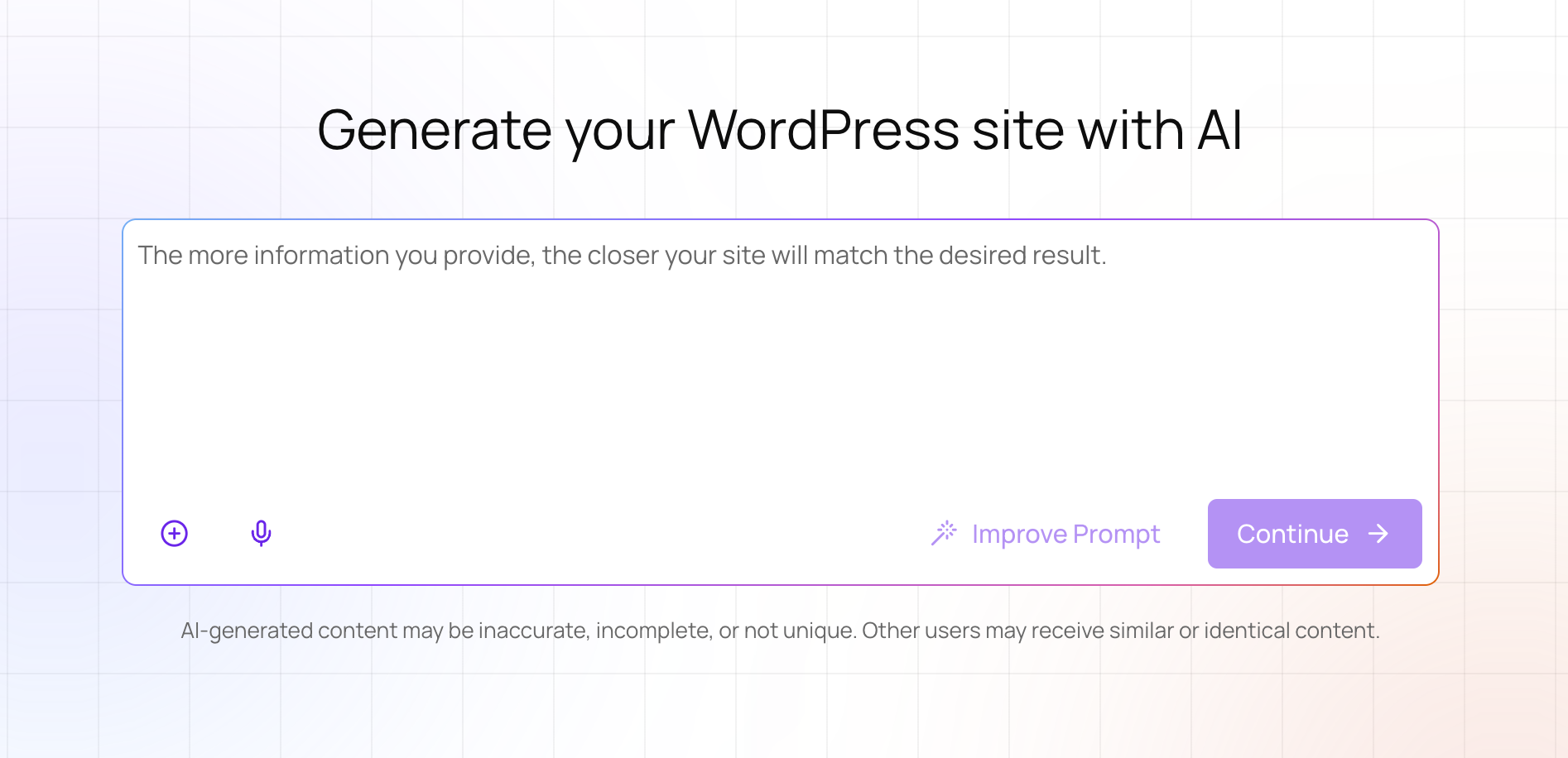
For example, you could enter this prompt to start a WordPress site for a pet daycare:
Build a fun, trustworthy website for a local pet daycare. I need a home page showing our daily schedule, a list of safety features (like 24/7 webcams and vet-certified staff), an interactive pricing table, and an easy contact form for new client registration.Click Continue when your prompt is ready. To generate a more accurate result, Nova asks you a few questions to clarify your idea. Answer in as much detail as you can.
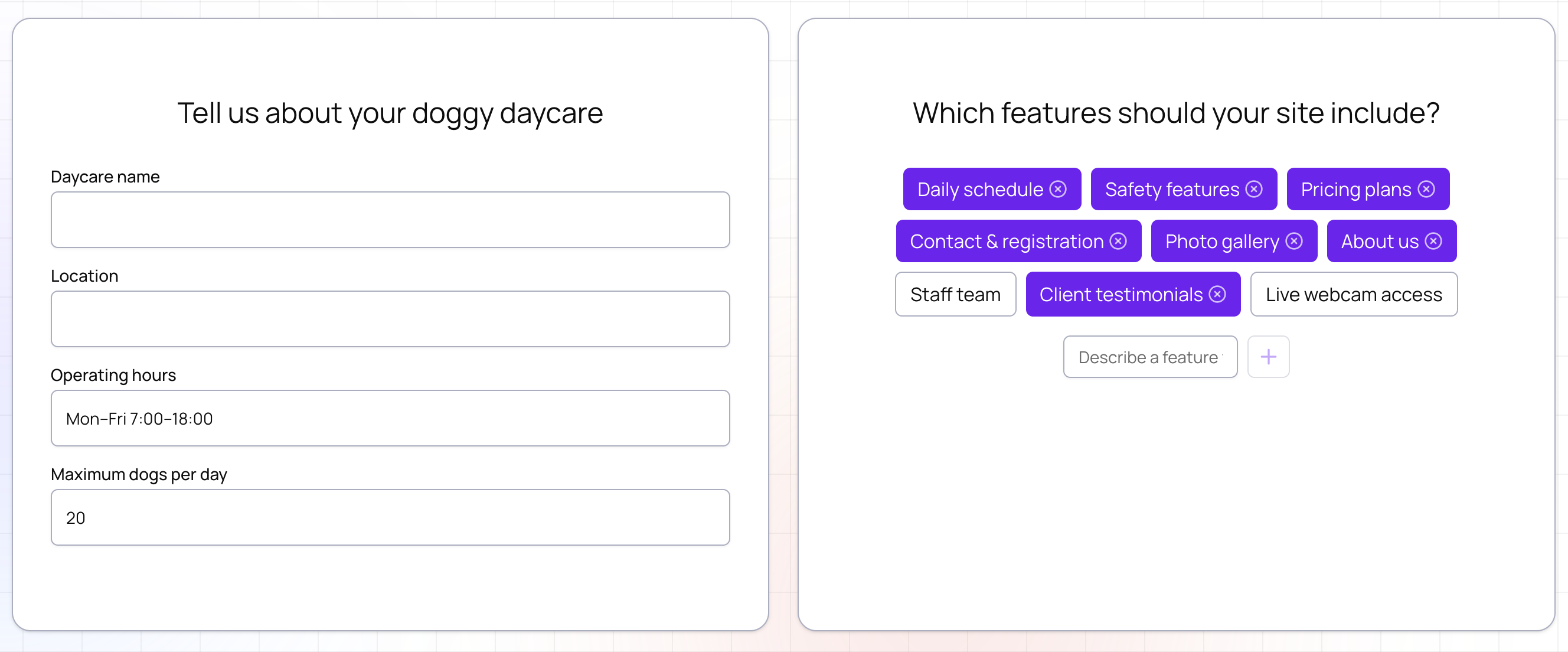
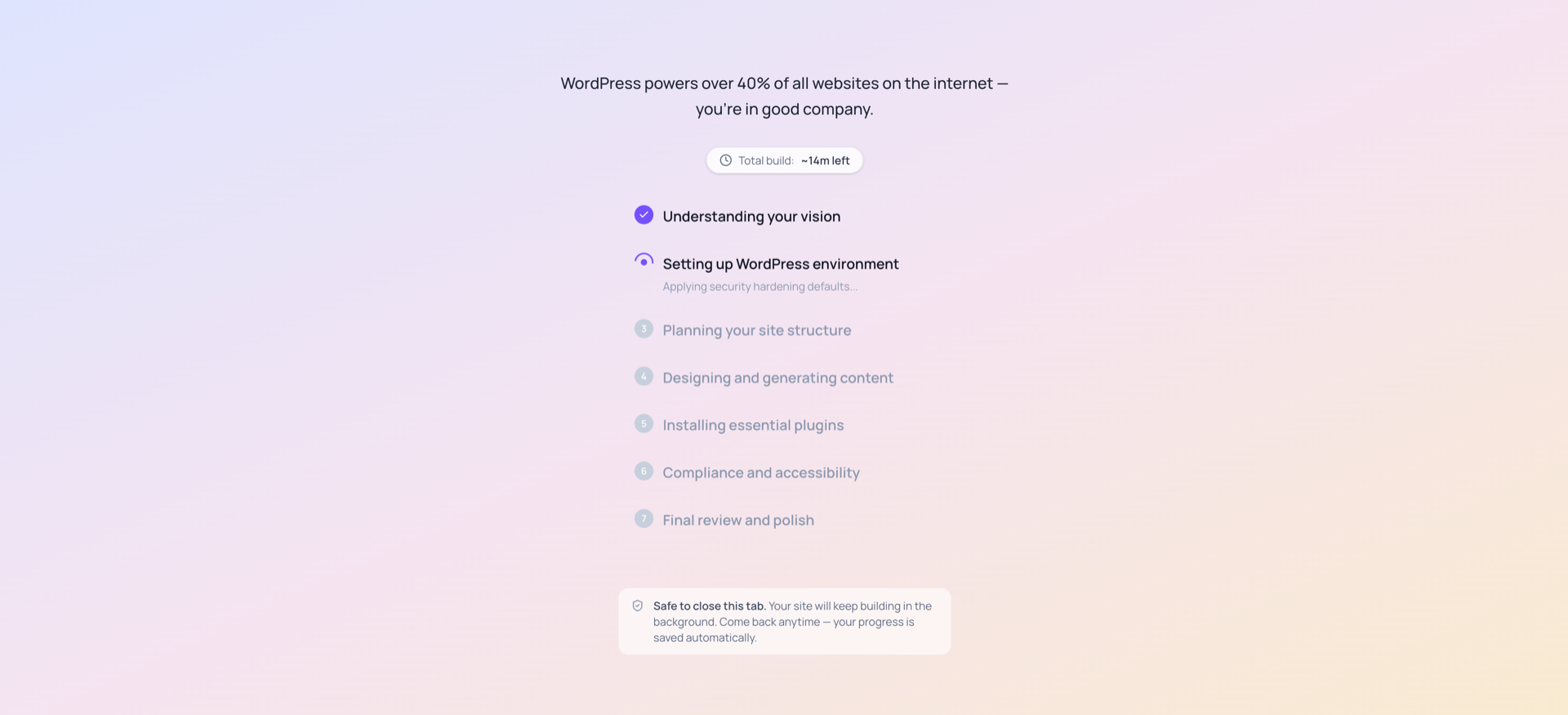
When you’re ready, click Start Building to generate the first version of your WordPress site. Nova creates the pages, navigation, starter content, and style direction of your WordPress site using the standard WordPress block editor.
An overview of your project appears as Nova builds it. Your progress is saved at this point. You can close this tab and come back later, or wait for Nova to finish building.
To return to cPanel while Nova builds your project, open the Account Menu and click Back to cPanel.
To reopen the Nova for WordPress editor, go to the Website Builder section (cPanel » Websites » Manage » Website Builder) and select Build with Nova for WordPress.
Review your WordPress site and make adjustments. You can make broad changes like asking Nova to change the style or tone, or you can make specific edits to individual pages and sections.
Nova includes several ways to easily refine your WordPress site:
When you are happy with your WordPress site, click Publish. Nova publishes your WordPress site to your domain and redirects you to cPanel.
After you publish, you won’t be able to edit the WordPress site with Nova. To edit your WordPress site, use the standard WordPress editor. We plan to add AI editing for published sites in a future release.