Title here
Summary here
Use Nova to create a web application (web app) from a prompt, refine the result, and publish it. This tutorial explains the steps to turn your idea into a working web app, such as a SaaS product, internal tool, or dashboard.
For steps to create a website instead, read our How to Create a Website. To create a WordPress® site, read our How to Create a WordPress Site documentation.
Start by entering a prompt that describes your web app idea. For the best results, include details about the main goal of your web app, the target users, and any specific features that you need. For more information, read our Prompting Best Practices documentation.
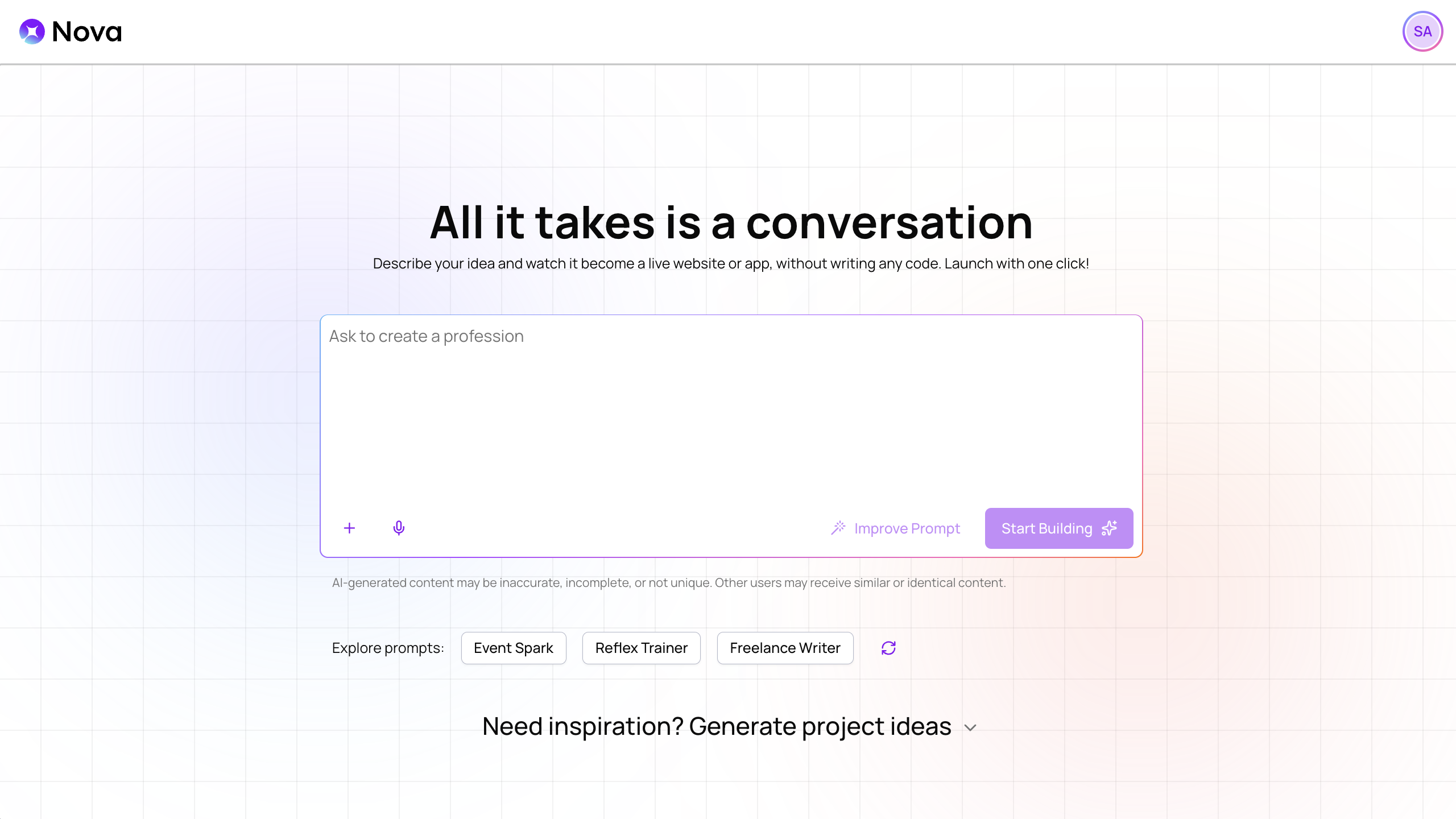
For example, you could enter this prompt to start a web app for a bakery:
Create a web app for managing the inventory in my bakery. It should track ingredients, unsold products, and miscellaneous supplies with features for breaking down costs, setting reorder alerts, logging daily usage, and generating low-stock reports. Keep the design simple so that it's approachable for even new staff members to use.When you’re ready, click Start Building to generate the first version of your web app. Nova will create the interface design, database structure, and core functionality using the information in your prompt and any additional context you provided.
When Nova finishes, you can view your generated web app in the preview panel:
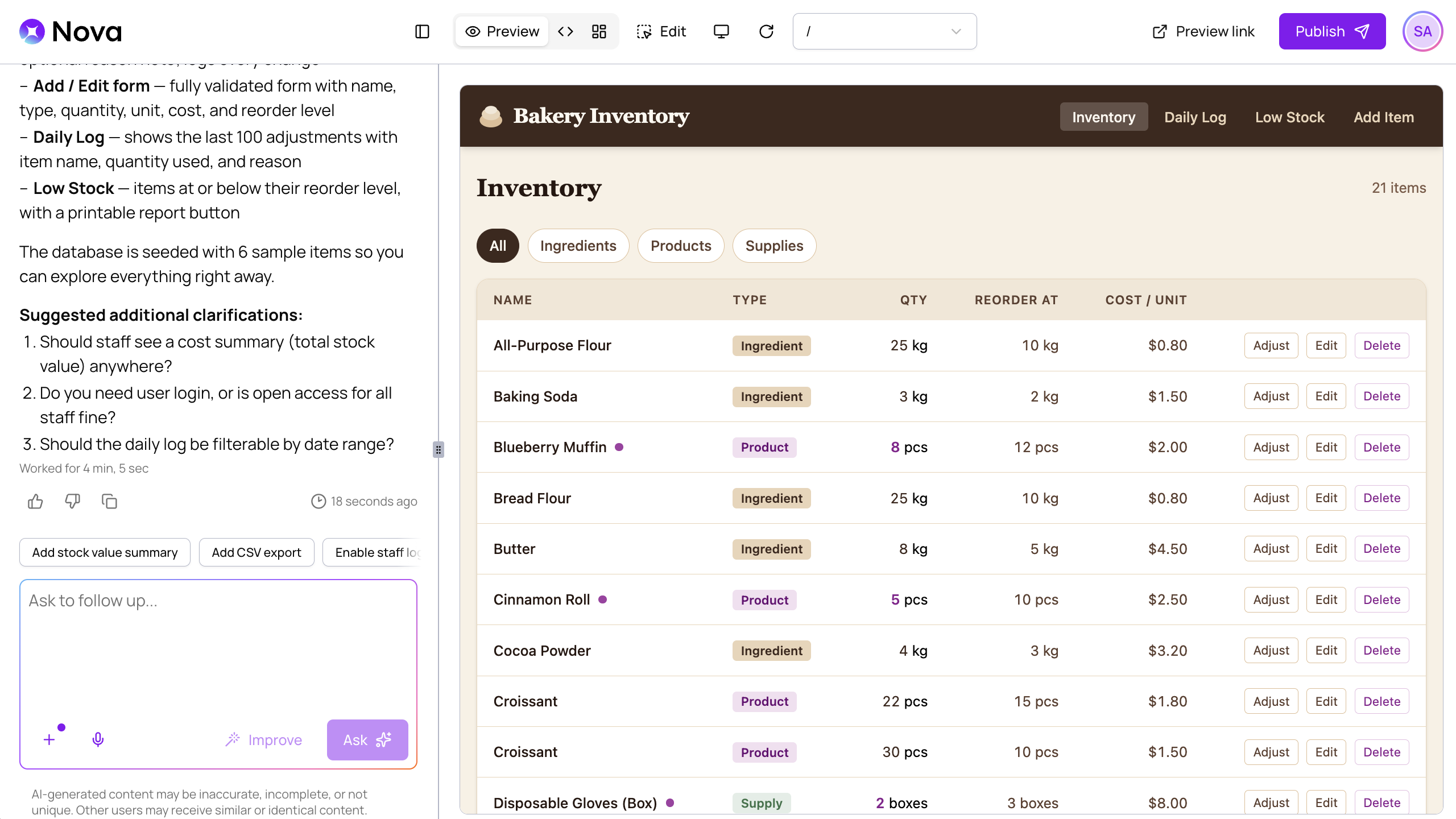
Review your web app and make adjustments. You can make broad changes like asking Nova to change workflows or interaction patterns, or you can make specific edits to individual elements.
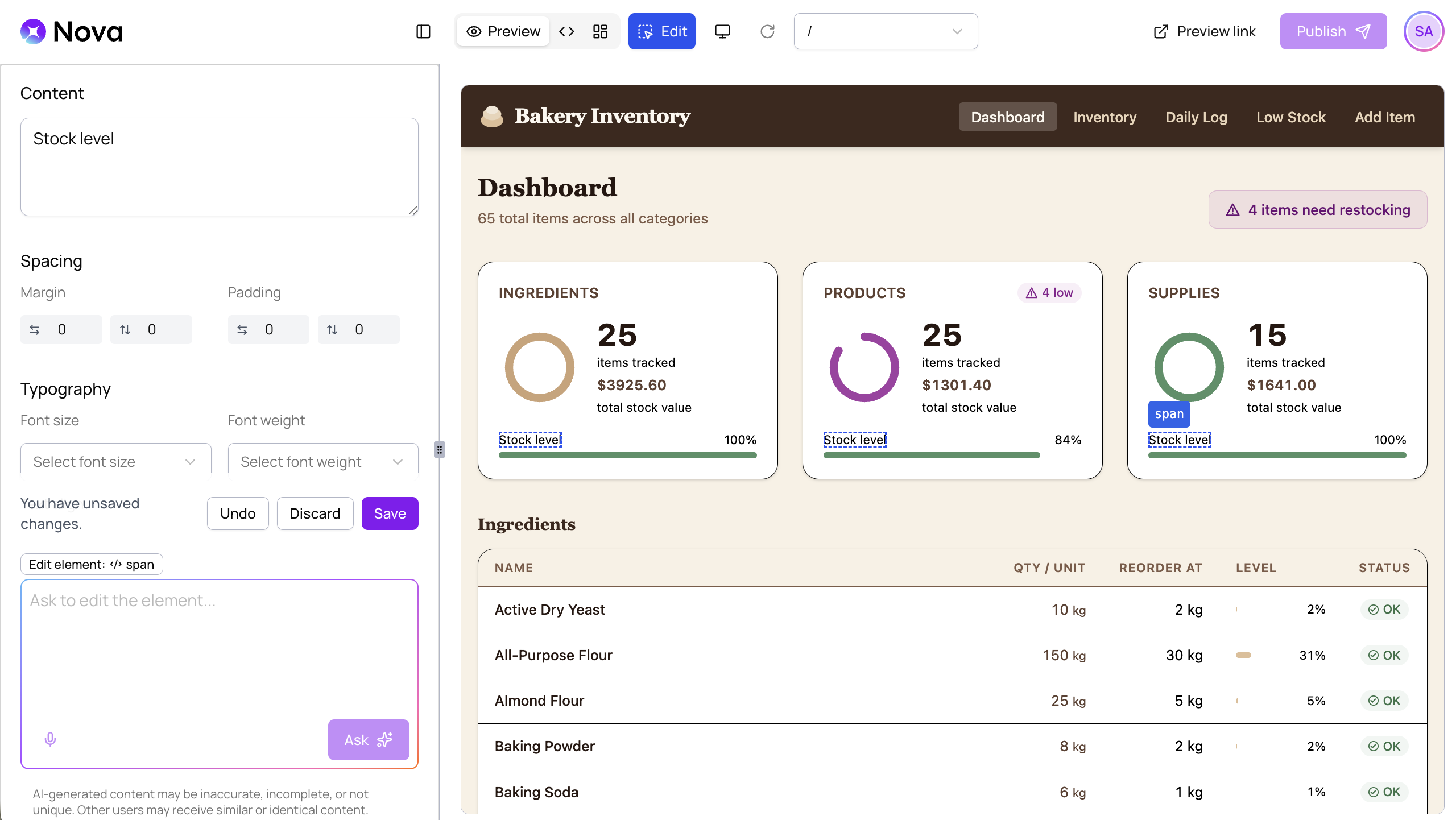
Nova includes several ways to easily refine your web app:
When you are happy with your web app, click Publish, select your domain, and click Publish to Website.
For more information, read our Website Publishing documentation.