Title here
Summary here
The Nova Partner Dashboard is your central place to monitor and manage everything related to your Nova deployment. Use it to track usage, manage your users and projects, review customer feedback, and configure your branding and developer settings.
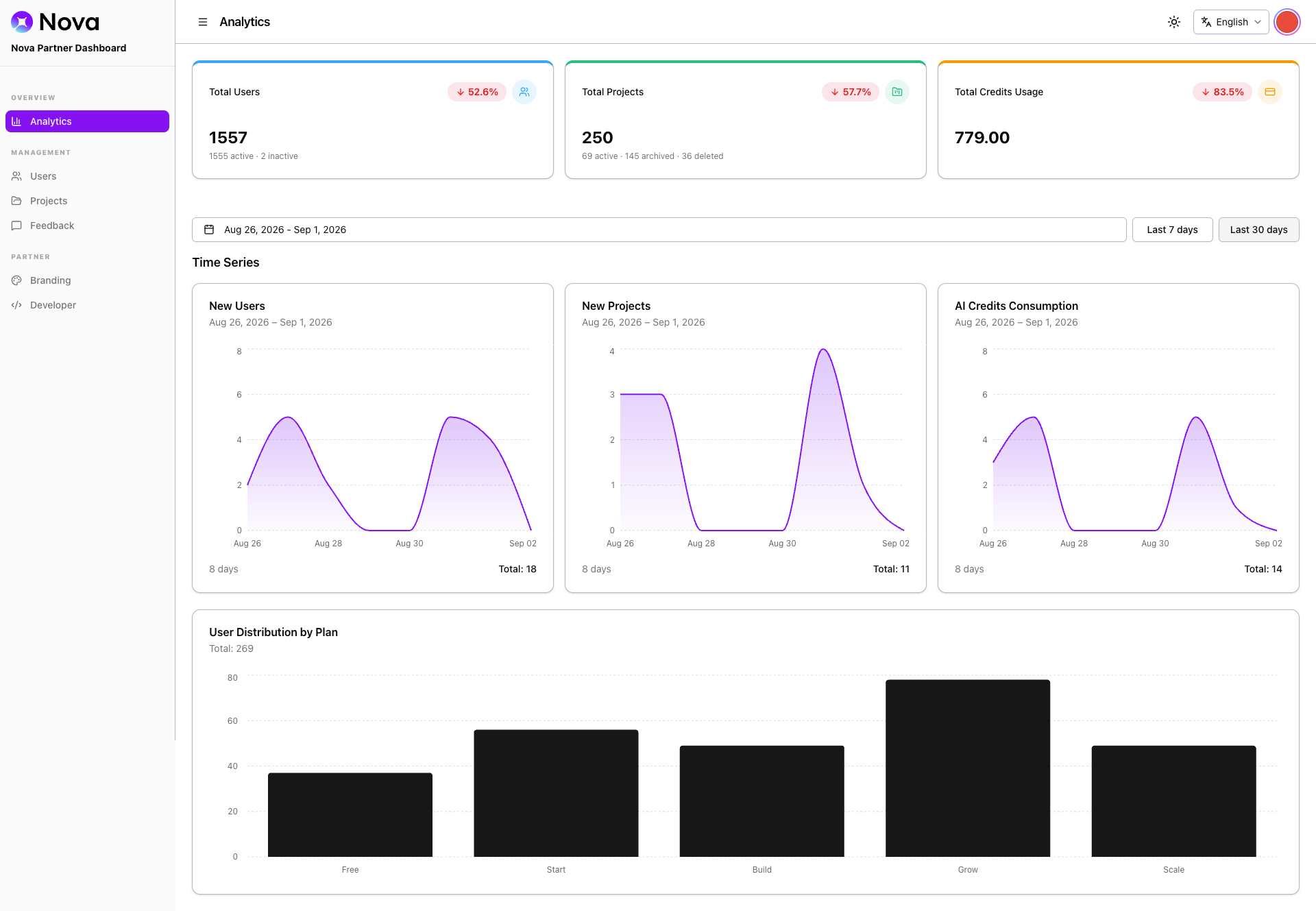
The Analytics page shows how your customers use Nova. Use it to spot trends and track adoption. It shows total users, projects, and AI credit usage. Each metric includes a percentage change from the previous period. Time series charts track new users, new projects, and AI credit consumption over a date range you choose. Another chart breaks down your customer base by plan.
The Users page lists every customer on your Nova deployment, along with their IP address, project count, and account creation date. Filter the list by email or name to find a specific account. You can activate, deactivate, or change a customer’s role yourself, without contacting Nova support.
The Projects page lists every project created on your Nova deployment, along with its owner, status, category, publish state, credits used, and creation and last-edited dates. Filter projects by ID or owner email to find a specific project. This lets you answer support questions without asking the customer for details. You can also include deleted projects in the list.
The Feedback page collects feedback that your customers submit from within Nova. You can catch and resolve their issues directly, instead of waiting for them to reach your own support channels. Search by user or message, filter by status, and review any attachments to find a specific report.
The Branding page controls how Nova looks and behaves for your customers. Under Appearance, you can set your brand’s theme colors, gradients, and names. You can also set the login, upgrade, and domain purchase URLs Nova uses for your customers. A live preview shows your changes as you make them.
You can toggle certain features on or off for your customers, such as the product roadmap link and the feedback button. A separate Email & Notifications tab controls customer-facing messages.
If you support multiple brands, you can set up a distinct configuration for each one. Nova matches each customer to the right brand automatically, based on the cPanel server IP address they log in from. This lets you present Nova as part of your own product, not as a separate third-party tool.
By default, your customers reach Nova at nova.webpros.com. You can add a custom domain to move the builder to a domain you own and match it to your branding. To request a custom domain, contact WebPros.
The Developer page manages the technical integrations for your brand. You can choose the region where backends are provisioned for new projects. You can also set the webhook endpoint and API key Nova uses to send you real-time event notifications. This lets you connect Nova events to your own systems, such as your CRM or billing platform. For more information about setting up and verifying webhook requests, read our Webhooks documentation.
Under Partner Rebuild API, generate the inbound API key that partners use to submit rebuild requests to Nova. Once a key is configured, partners authenticate requests with X-Partner-Id and X-API-Key headers to the POST https://nova.webpros.com/api/integration/partners/cpanel/rebuilds endpoint. You can rotate the API key at any time, which invalidates the previous key. For more information on submitting rebuild requests, read our
Use the Partner Rebuild API documentation.