Title here
Summary here
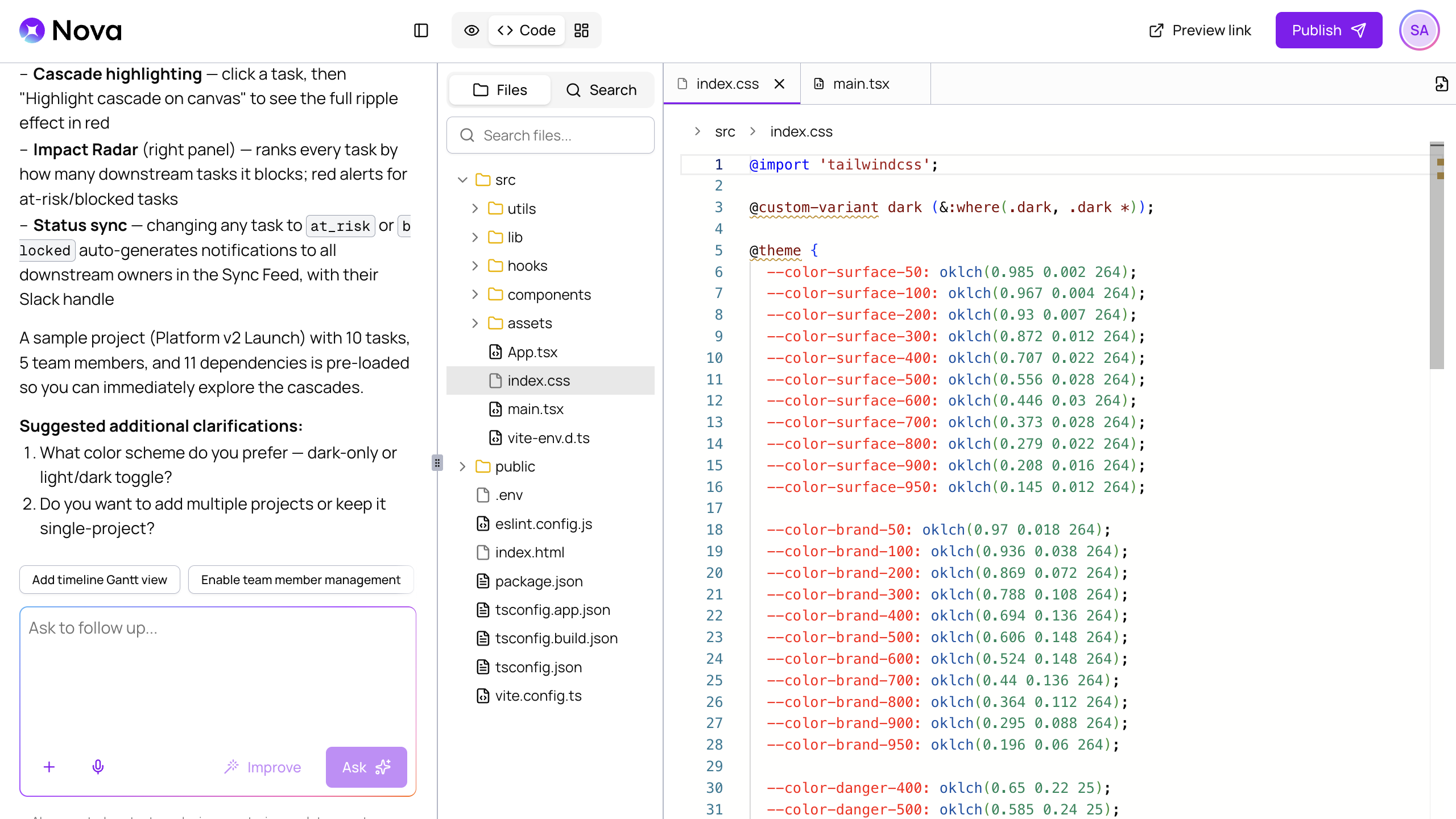
Nova’s Code Editor gives you direct access to your project’s files. Use it when you want to find and review specific files or make changes that are more advanced than the options that are available in Edit Mode.
The Code Editor works best for targeted code changes. Common uses include:
AI project generation and direct editing work best together:
To access the Code Editor, click the code icon (
 ) in the top navigation bar. The Code Editor displays a list of your project’s files and the contents of the files that you open.
The Code Editor does not automatically save your changes. Make sure to save your changes regularly.
Use the file list to browse your project’s file structure:
You can open multiple files at a time and switch between them using the tabs at the top of the editor panel.
To close a file, click the x icon (
 ) for that file’s tab.
The Code Editor includes multiple ways to search for files and their contents:
After you open a file, you can make direct edits to its code. The editor supports syntax highlighting and formatting for common file types.
For targeted AI edits, you can reference files while chatting with Nova. For each file that you want to reference, open that file and click the file icon (
 ) in the top corner of the editor panel. Then, send your request to Nova.
) for that filename in the prompt text box.When you are finished making changes, click Save to save your project.
If you close the project without saving, you will lose your changes.
If you do not want to keep the changes you made in the Code Editor, click Reset to discard all unsaved changes and return to the last saved state.
If changes do not appear after you leave the Code Editor and return to the project preview, you may not have saved your changes. Reopen the file to check whether your edits are present.
If they are not, reapply your changes and click Save.
If spacing, indentation, or style is inconsistent after making changes in the Code Editor, your code may have diverged across the edited files.
Chat with Nova and ask it to apply consistent formatting across your project. You can also use the Code Editor to manually adjust formatting in specific files.
If a generated change replaces code that you had previously manually edited in the Code Editor, your prompt may have been too broad or may have unintentionally referenced the file that you edited.
Edit the prompt that caused the change and ensure that it targets only the file or section you want to change. Nova will revert the generated change and reapply your prompt.