Title here
Summary here
Project instructions set persistent rules for your entire project. Nova uses these instructions during project generation and every time you make changes. You can use project instructions to set coding styles, framework preferences, design patterns, and other limits. Nova applies these rules in all AI conversations within the specific project.
For example, if you want a friendly, conversational tone, you can define this in the project instructions. Nova then applies this tone to the text it generates for each prompt in the project.
You can add different instructions for each Nova project.
Project instructions make writing new prompts easier, so you do not need to repeat rules with every prompt while working on your project.
Project instructions have a higher priority than prompts. Nova will apply these rules to the context each time.
If you create a prompt that conflicts with a persistent rule, Nova will answer that the project instructions do not allow the requested action. For example, you could add the following project instructions:
Do not add text to images.Then, you could send the following prompt:
Add the following text to the image:Nova will not add the text.
In this case, you can either edit the rule or modify the prompt to avoid the conflict.
You can create project instructions during project generation or within an existing project. Nova will use these instructions whenever you make future edits. You can edit or reset them anytime within the related project.
To add instructions to your new project, click the plus icon (
 ) in the initial prompt text box and select Project Instructions. Add your instructions in the text box and click Save to keep the changes.
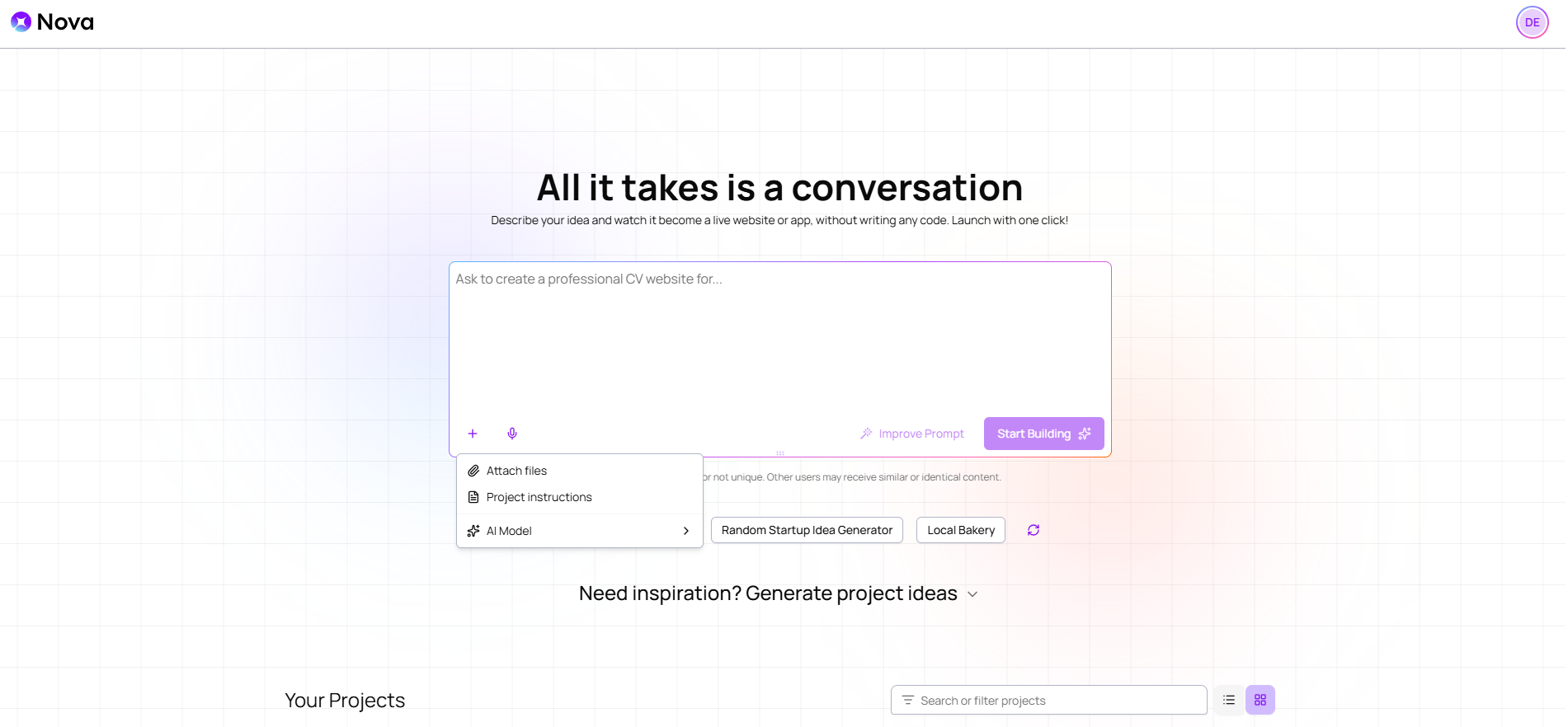
If you want to add instructions to an existing project, open it, click the plus icon (
) in the prompt text box and select Project Instructions. Add your instructions in the text box and click Save.
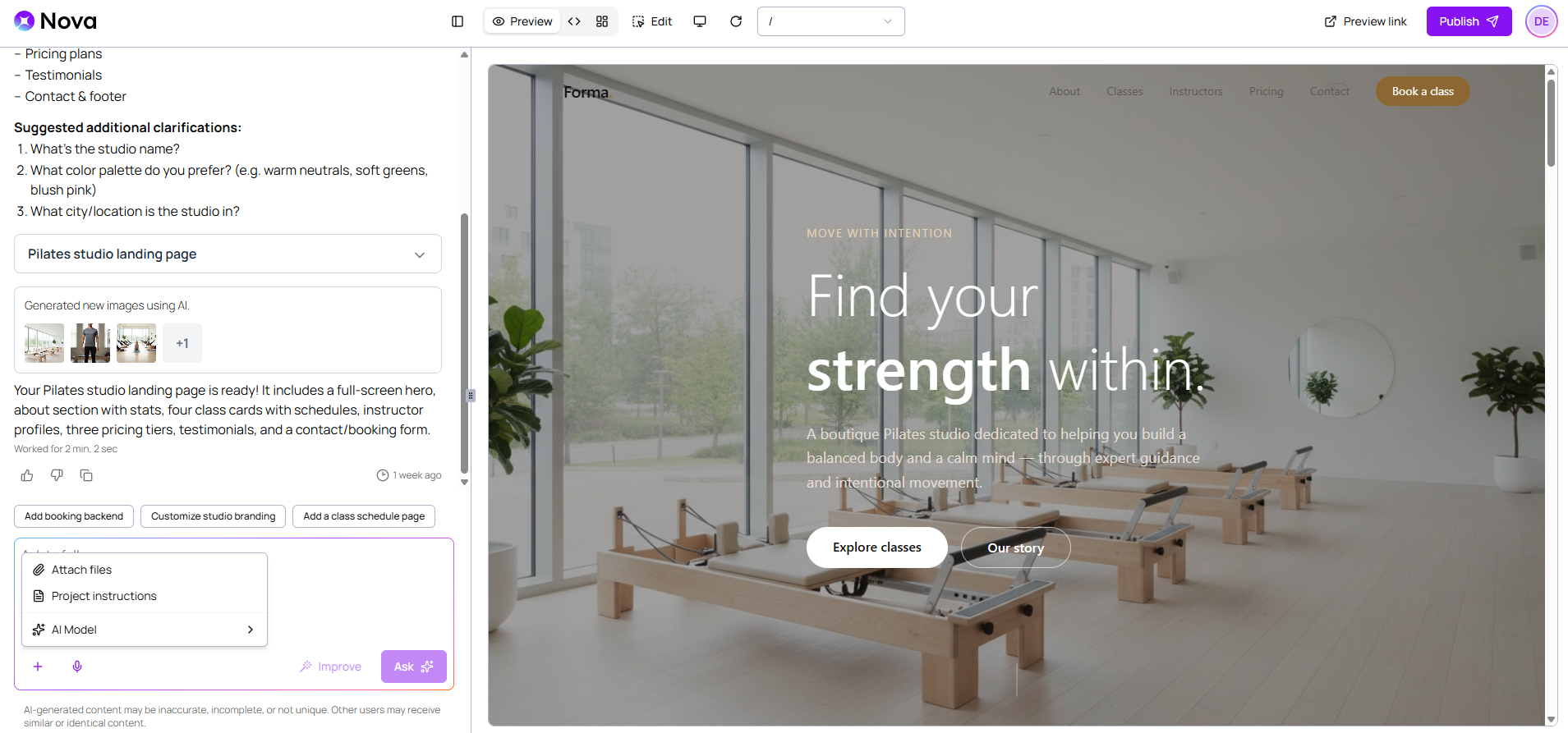
You can also add project instructions through the Manage menu. Click the manage icon (
 ) in the top navigation bar and select Instructions. Add your instructions in the text box and click Save.
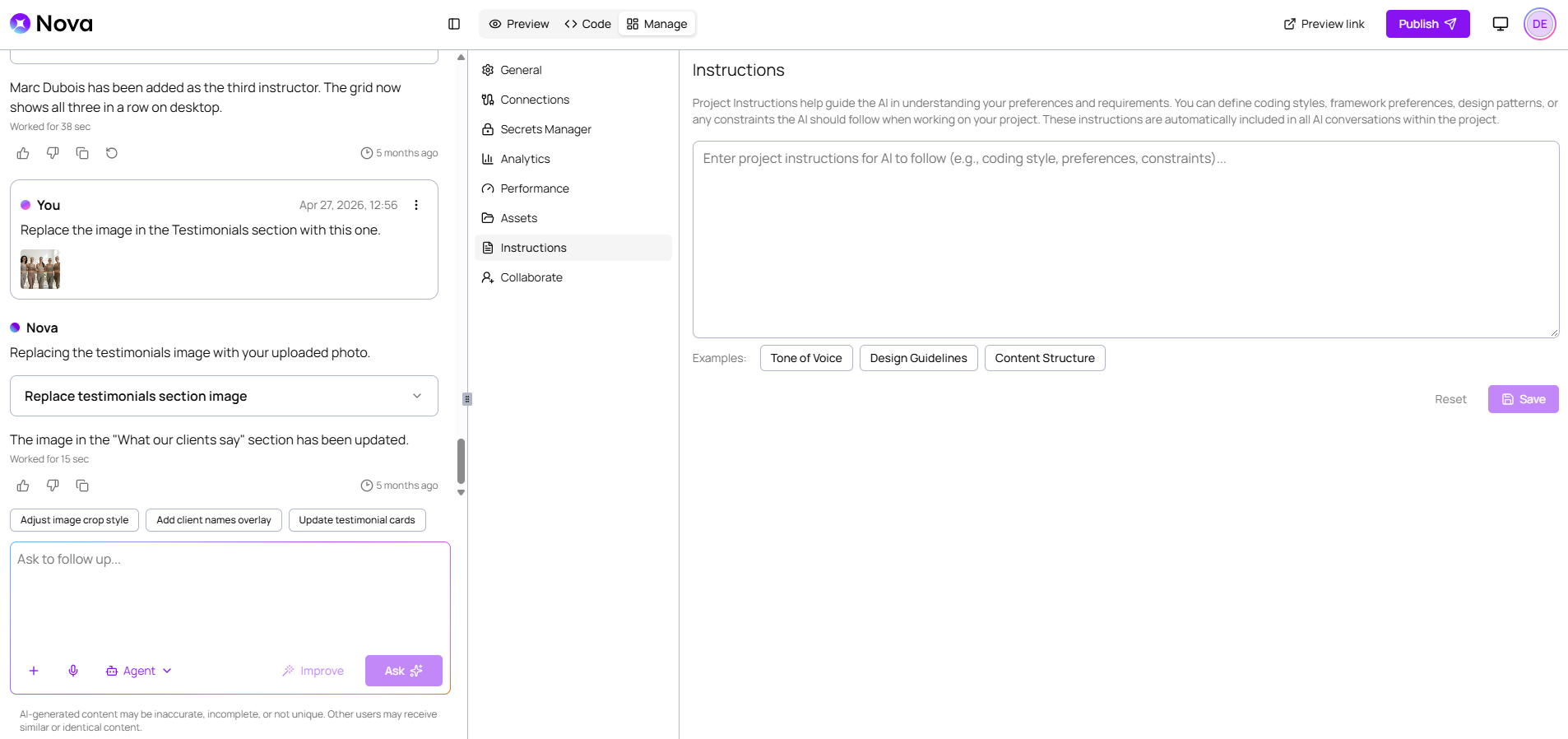
You can edit or reset project instructions at any time from the prompt text box or the Instructions section in the Manage menu.
Nova indicates whether projects have saved instructions with a plus icon with a dot (
 ) in the prompt text box.
If you’re not sure where to start with project instructions, you can explore Nova’s ready-to-use examples. You can choose from Tone of Voice, Design Guidelines, or Content Structure.
When you click a suggested example, Nova adds the selected project instructions to the prompt text box.
In some cases, a prompt may conflict with project instructions, but Nova may still follow the prompt instead of the defined rules. If you do not want to keep these changes, edit your previous prompt.