Title here
Summary here
Plan Mode is a Nova chat mode that creates a structured implementation plan before building your project. You can review the plan and ask Nova to make changes. When you approve the plan, Nova switches to Agent Mode and uses the plan to build your website or web app.
Plan Mode works best for projects that require attention to detail and accurate execution. Common uses include:
To enable Plan Mode, open the chat mode selector in the prompt toolbar and choose Plan (
 ).
).
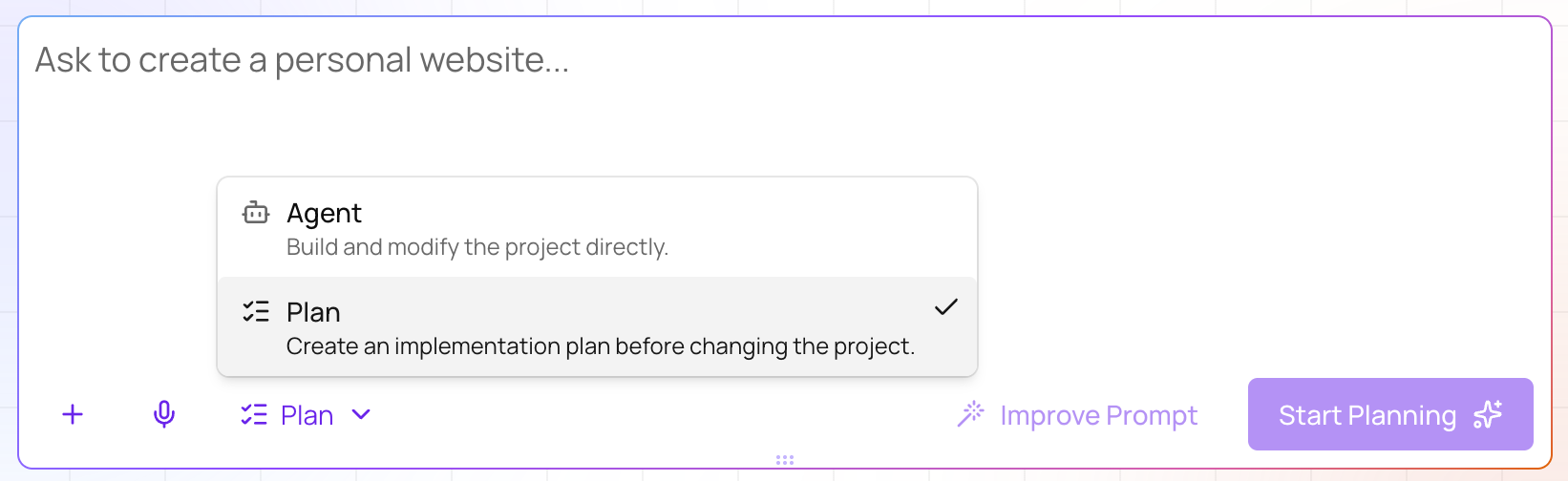
Then, enter a prompt describing your website or web app and click Start Planning. For example, you could enter this prompt to plan a web app with several interconnected features:
Create a plan to build a web app for a community garden scheduler. Members should be able to reserve garden plots, log watering schedules, and view a shared events calendar. Include an admin view for approving new member requests and managing plot assignments.The chat mode selector is always available. You can enable Plan Mode when you start a new project or while working on an existing project.
Before generating a plan, Nova may ask questions to collect any details missing in your prompt. Each question includes a recommended answer and suggested answers. You can also type your own answer if you want to include more details.
Each question has a 10-minute countdown timer. If you do not answer a question within this window, Nova continues automatically with the recommended answer.
When your plan is ready, Nova shows a Plan section in the chat panel. Click Expand plan to show the full plan and review it. The sections of your plan vary depending on your project. To continue:
Nova tailors each plan to your goals and requirements, so each plan is different. Your plan can include the following sections:
| Section | Description |
|---|---|
Scope Summary | A high-level overview of what Nova will build or change in the project. |
Assumptions | The choices Nova is making where your prompt left gaps. |
Key Features | The main features, behaviors, and changes the project will include. |
Pages or Screens | An outline of the pages or app screens. |
Content and Assets | The copy, images, and branding the project needs. |
Inputs and Constraints | Specific inputs, requirements, and constraints that shape the project, such as color themes, layout rules, external integrations, or existing functionality to preserve. |
Implementation Approach | The order in which Nova will build. |
Risks and Edge Cases | Potential issues and how Nova will handle them. |
Follow-ups | Optional enhancements Nova suggests for later, outside the scope of the current plan. |
If your plan doesn’t include one of these sections, you can ask Nova to include it directly.
If you do not respond to a clarifying question before the 10-minute countdown ends, Nova continues generating the plan using the recommended answer. Click Revise to reply in the chat panel with the correct details.
If the generated plan doesn’t match what you wanted:
If Nova does not switch to Agent Mode and begin building after you approve a plan, you may be out of credits. You can see your credit balance and refresh date in the Account Menu. For more information, read our Billing and AI Credits documentation.