# Image GenerationImage Generation creates custom AI images from text prompts within a WebPros Nova website or web app project. Generated images are saved to the project's Assets section and the Code Editor under public/generated. Images can be repositioned and restyled in Edit Mode, reused by referencing them in a prompt, replaced with newer versions, or used as the visual foundation for branding and layout. Nova cannot edit the pixel content of a generated image. Do not generate copyrighted works, real people without permission, or prohibited content.
You can create custom high-quality images and graphics directly within Nova. Generate AI images to visualize your ideas and reuse them in your web project.
Here is what you can do with your image:
- **Display it** — Adjust size, position, and opacity.
- **Build around it** — Add a landing page, card layout, caption, hover effects, and more.
- **Swap it** — If you upload a new version, Nova can replace the current one.
{{< callout context="note" icon="outline/info-circle" >}}
Nova works with code and web files. When you create an image, you **can not** edit or modify the image itself within Nova.
{{< /callout >}}
## How to generate an image
Use the prompt text box to describe the image you want to create for your web project:
- For a new project, type your description in the prompt text box on the home page, and click _Start Building_.
- For an existing project, go to the _Your Projects_ section, open the project, enter your description in the prompt text box, and click _Ask_.
Nova uses your description to generate the image.
You can also drag and drop or upload an image into the prompt text box and use it as a reference to generate a new image. Use clear, detailed prompts to get results that better match your idea. See the [prompt tips](#prompt-tips-for-better-images) for more guidance.
If you are not satisfied with a generated image, you can create a new one.
## Where to find your images
Nova saves every image you create in its project. To find an existing image, open the project in the _Your Projects_ section. You can view your images in the _Assets_ section of the _Dashboard_ or in the [_Code Editor_](/en/features/design/code-editor/) under _File_ >> _public_ >> _generated_ folder.
Use the top navigation bar to switch between the _Dashboard_ and the _Code Editor_.
## How to use an image within a project
### Edit an image
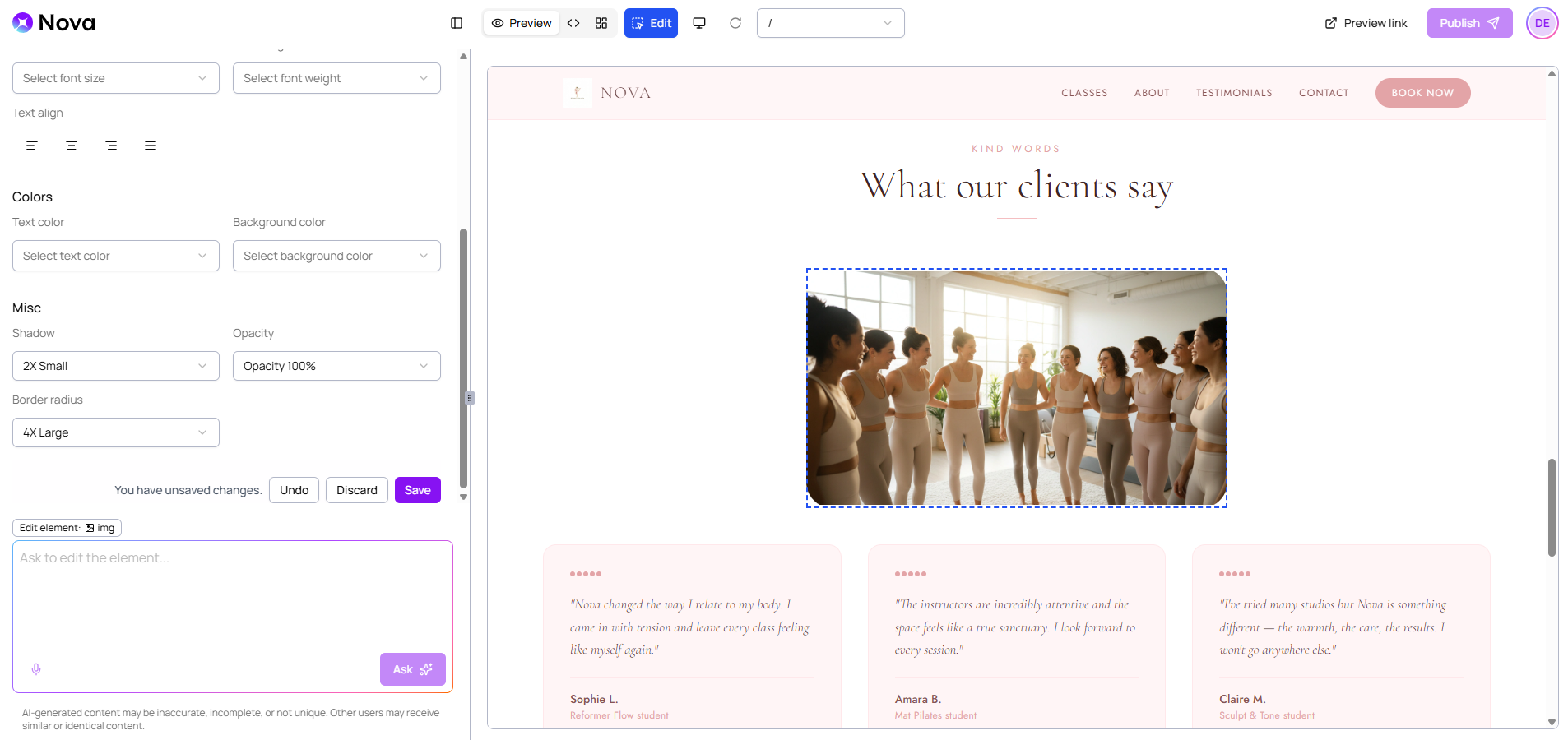
When you create an image, you can continue working on your idea with the prompt text box. If you want to make targeted changes to a specific element, use the[Edit Mode](/en/features/design/edit-mode/).
To edit an image, open the project related to the image, then click _Edit_ in the top navigation bar to enter Edit Mode. In the preview area, select the image you want to modify. Use the style panel on the left to adjust styling settings, such as spacing (margin or padding), shadows, opacity, and border radius.
When you are happy with the result, click _Save_ to apply your changes.
 ### Reuse an image
To reuse an image in a project, add it to the prompt text box and describe how you want to use it. Open the project that contains the image, then add it to the prompt text box using one of the following options:
- Select the image in the _Assets_ section of your Dashboard and click _Add to Chat_.
- Open the _Code Editor_, find the image in the _generated_ folder, and click the _Reference file to chat_ icon ().
### Reuse an image
To reuse an image in a project, add it to the prompt text box and describe how you want to use it. Open the project that contains the image, then add it to the prompt text box using one of the following options:
- Select the image in the _Assets_ section of your Dashboard and click _Add to Chat_.
- Open the _Code Editor_, find the image in the _generated_ folder, and click the _Reference file to chat_ icon ().
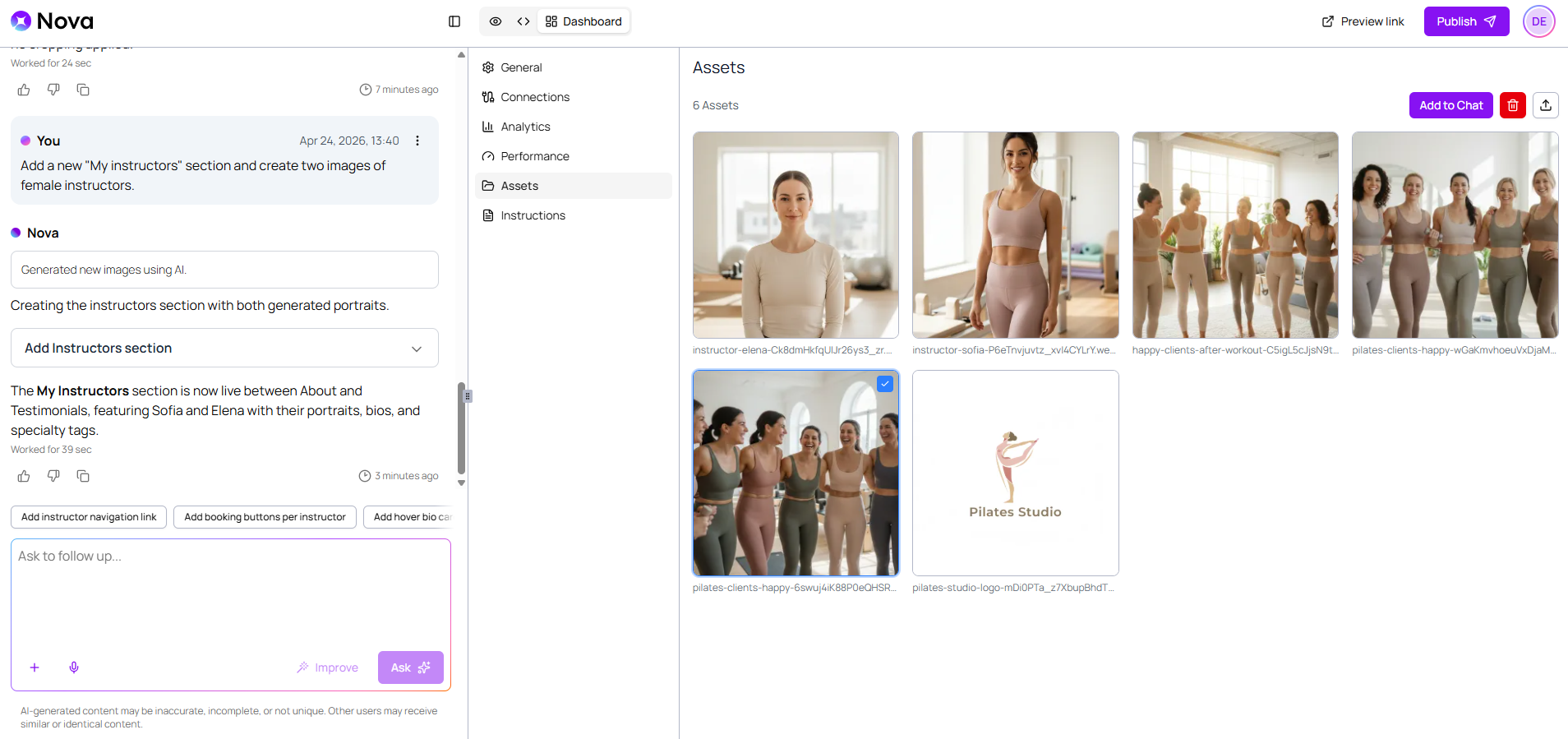 Both options attach the image to the prompt text box.
Then, enter a prompt that explains how you want to use the image. For example, you can write:
{{< nova-prompt>}}
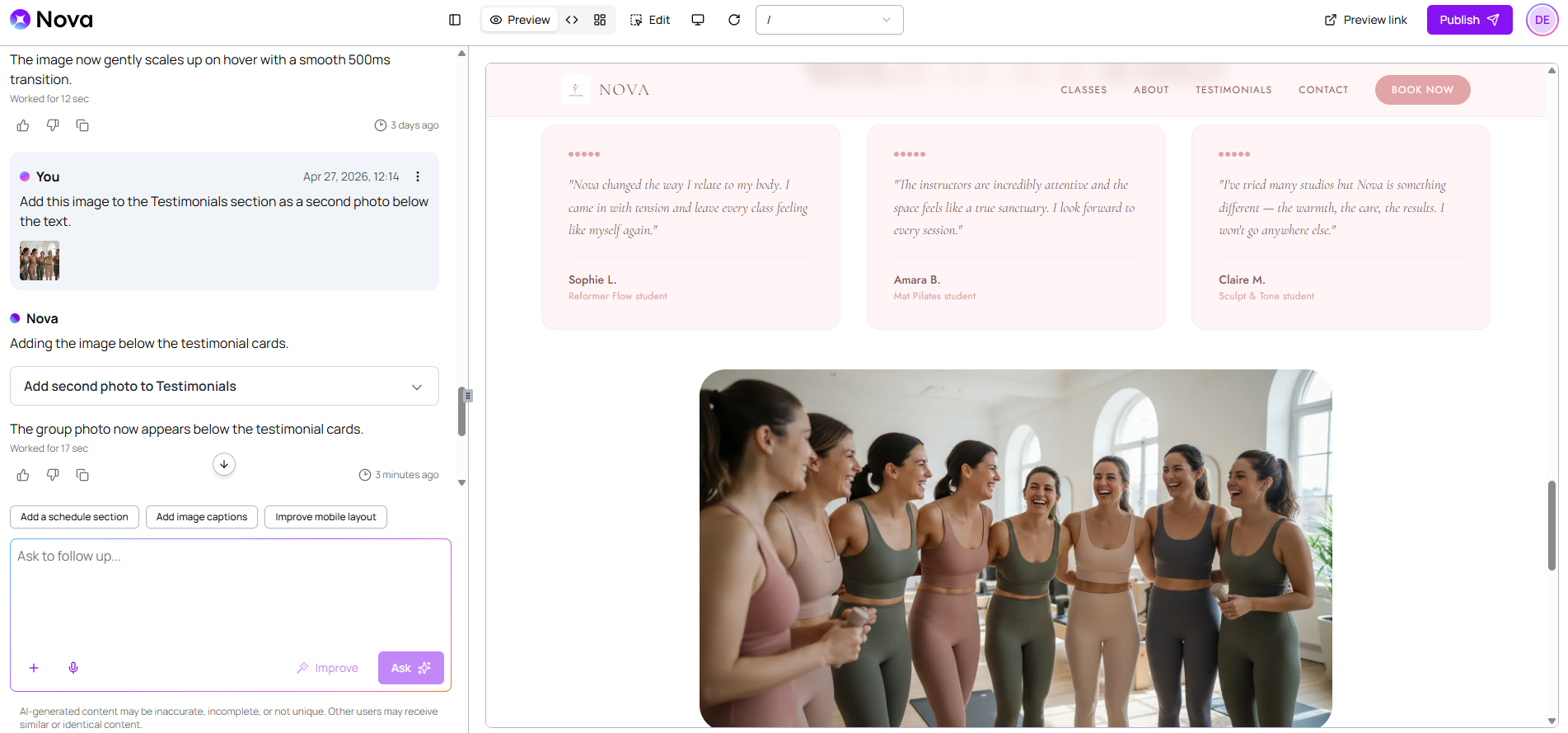
Add this image to the Testimonials section as a second photo below the text.
{{< /nova-prompt >}}
Click _Ask_, and Nova applies your request and updates your project.
Both options attach the image to the prompt text box.
Then, enter a prompt that explains how you want to use the image. For example, you can write:
{{< nova-prompt>}}
Add this image to the Testimonials section as a second photo below the text.
{{< /nova-prompt >}}
Click _Ask_, and Nova applies your request and updates your project.
 ### Replace an image
To replace an image with one from your _Assets_, add it to the chat and write a prompt to say what to replace and where. You can also [replace an image](/en/features/design/edit-mode/#replacing-an-image) in Edit Mode.
You can always [undo your changes](/en/features/create/edit-previous-prompt/), so don't hesitate to try different options and choose what works best for your project.
### Build around it
Generate an image and use it as a starting point for your web project. When you create an image, you can ask Nova to build your branding around it.
You can:
- Use the image as a hero section on your landing page.
- Match your color palette and style to the image.
- Create a consistent look across your project.
- Add a hover effect for a more interactive experience.
For example, if you do not have a logo but have an idea of how you want it to look, you can generate a logo image and then build your overall design with Nova.
## Prompt tips for better images
Write clear, detailed prompts to create images that accurately reflect your idea. Here are some tips:
- Be specific about the subject and describe exactly what you want to see.
- Add context and setting.
- Define your style and tone.
- Specify colors and branding that match your project.
- Mention lighting and quality.
- Keep it concise but detailed. Try to avoid vague prompts.
See the following example prompt:
{{< nova-prompt>}}
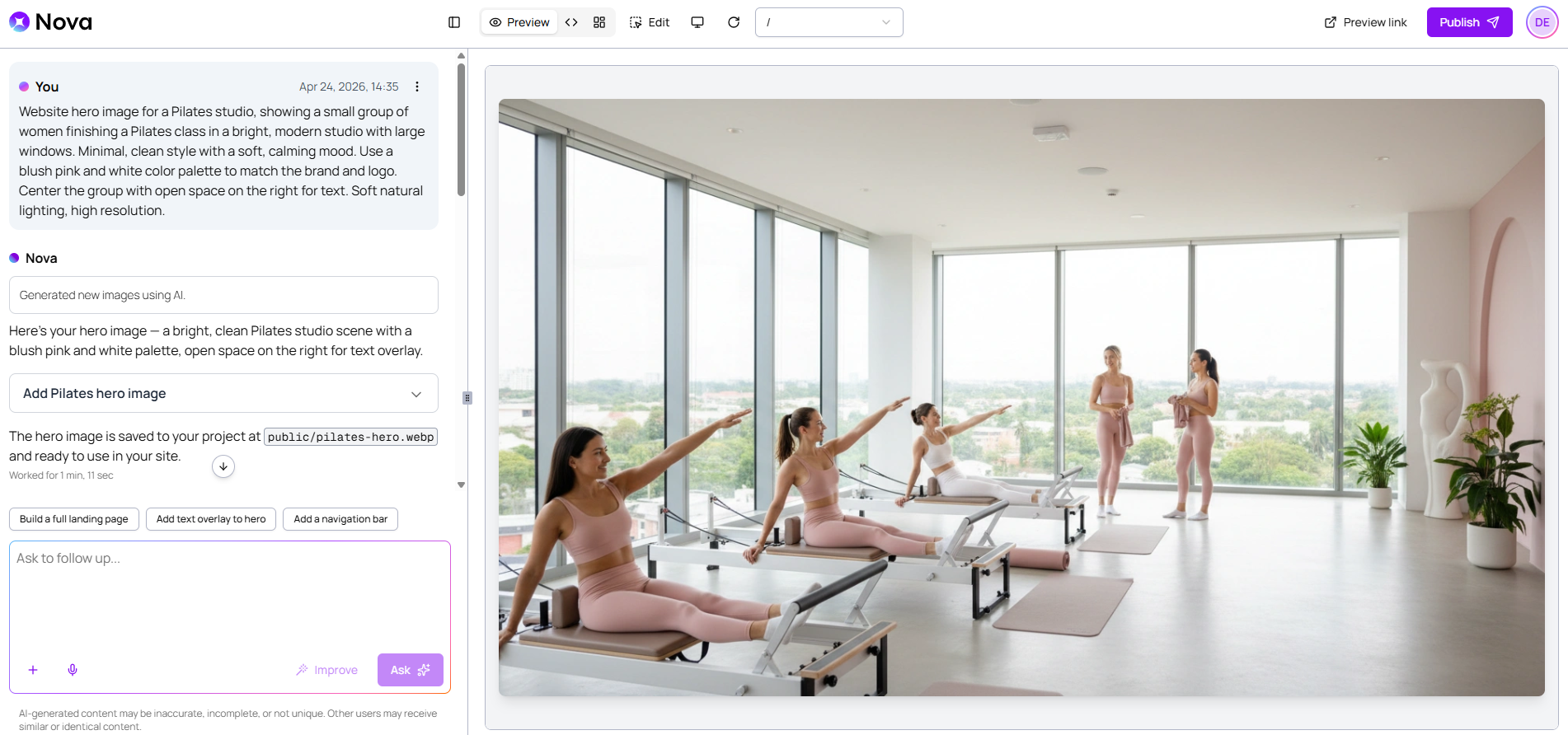
Website hero image for a Pilates studio, showing a small group of women finishing a Pilates class in a bright, modern studio with large windows. Minimal, clean style with a soft, calming mood. Use a blush pink and white color palette to match the brand and logo. Center the group with open space on the right for text. Soft natural lighting, high resolution.
{{< /nova-prompt >}}
### Replace an image
To replace an image with one from your _Assets_, add it to the chat and write a prompt to say what to replace and where. You can also [replace an image](/en/features/design/edit-mode/#replacing-an-image) in Edit Mode.
You can always [undo your changes](/en/features/create/edit-previous-prompt/), so don't hesitate to try different options and choose what works best for your project.
### Build around it
Generate an image and use it as a starting point for your web project. When you create an image, you can ask Nova to build your branding around it.
You can:
- Use the image as a hero section on your landing page.
- Match your color palette and style to the image.
- Create a consistent look across your project.
- Add a hover effect for a more interactive experience.
For example, if you do not have a logo but have an idea of how you want it to look, you can generate a logo image and then build your overall design with Nova.
## Prompt tips for better images
Write clear, detailed prompts to create images that accurately reflect your idea. Here are some tips:
- Be specific about the subject and describe exactly what you want to see.
- Add context and setting.
- Define your style and tone.
- Specify colors and branding that match your project.
- Mention lighting and quality.
- Keep it concise but detailed. Try to avoid vague prompts.
See the following example prompt:
{{< nova-prompt>}}
Website hero image for a Pilates studio, showing a small group of women finishing a Pilates class in a bright, modern studio with large windows. Minimal, clean style with a soft, calming mood. Use a blush pink and white color palette to match the brand and logo. Center the group with open space on the right for text. Soft natural lighting, high resolution.
{{< /nova-prompt >}}
 For more information, see the [Prompting Best Practices](/en/welcome/prompting-best-practices/) documentation.
## Safety and Copyright
When using Nova to create images, keep things safe, respectful, and legal. Do not generate harmful or illegal content, or images that show real people without their permission.
{{< callout context="caution" icon="outline/alert-triangle" >}}
- We strongly recommend that you avoid copyrighted material. **Do not** request or recreate specific copyrighted works, logos, or recognizable characters.
- Be careful with brands and trademarks. **Do not** include brand names, logos, or protected designs unless you have a permission.
{{< /callout >}}
## Troubleshooting
### Image doesn't match your request
If Nova generates an image that doesn't match your request, try the following:
- Edit your prompt and add more details. Be specific about what you want to include or exclude.
- Create a new prompt and generate a new image. You can also ask Nova to generate multiple images and use the one that meets your needs.
### Generation failed
If Nova fails to generate an image, try the following:
- Check your internet connection and try again.
- Ask Nova in a new prompt to fix the issue.
- Retry with a new prompt.
For more information, see the [Prompting Best Practices](/en/welcome/prompting-best-practices/) documentation.
## Safety and Copyright
When using Nova to create images, keep things safe, respectful, and legal. Do not generate harmful or illegal content, or images that show real people without their permission.
{{< callout context="caution" icon="outline/alert-triangle" >}}
- We strongly recommend that you avoid copyrighted material. **Do not** request or recreate specific copyrighted works, logos, or recognizable characters.
- Be careful with brands and trademarks. **Do not** include brand names, logos, or protected designs unless you have a permission.
{{< /callout >}}
## Troubleshooting
### Image doesn't match your request
If Nova generates an image that doesn't match your request, try the following:
- Edit your prompt and add more details. Be specific about what you want to include or exclude.
- Create a new prompt and generate a new image. You can also ask Nova to generate multiple images and use the one that meets your needs.
### Generation failed
If Nova fails to generate an image, try the following:
- Check your internet connection and try again.
- Ask Nova in a new prompt to fix the issue.
- Retry with a new prompt.