Title here
Summary here
Nova lets you upload files directly in the prompt text box to give the AI additional context for your requests. When you attach a file, Nova can summarize its content, extract key information, or reference it when generating or editing your site. You can attach images, videos, documents, and spreadsheets using the prompt toolbar or by dragging them into the chat.
Do not attach files that contain passwords, API keys, or other sensitive credentials. Review the Security and privacy section before uploading confidential content.
When you include a file in your prompt, Nova uses its content to inform its response. Depending on your request, Nova can:
The more specific your prompt, the more accurately Nova applies the file’s content to your request.
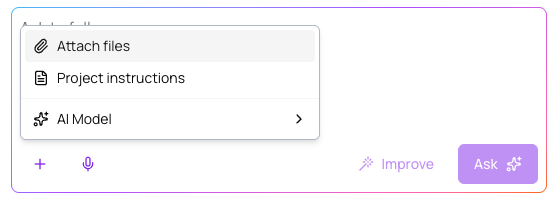
You can attach a file to your prompt in two ways.
To use the toolbar:
 ) in the prompt toolbar.
To drag and drop:
To remove an attached file before sending your prompt, hover over the file thumbnail in the prompt box. Then, click the x icon (
 ).
).
Nova supports the following file types and limits:
| File Type | Max File Size | Max Files per Prompt |
|---|---|---|
| PNG, JPEG, GIF, and WebP images | 6 MB | 5 |
| MP4 video | 4 MB | 5 |
| 5 MB | 5 | |
| CSV | 1 MB | 5 |
| XML and XLSX | 1 MB | 5 |
Follow these practices when attaching files to Nova:
Upload failed
If your file does not upload, confirm that the file meets the size and format requirements in the Supported file types and limits section. Then try uploading again. If the issue persists, refresh the page and retry.
Unsupported file type
Nova only accepts the file types listed in the Supported file types and limits table. Convert your file to a supported format and try again.
Nova is not using the file content correctly
If Nova’s response does not reflect the content of your attachment, try rephrasing your prompt to be more specific about what you want Nova to do with the file. For example, specify whether you want Nova to summarize, extract, or reference the content.