Title here
Summary here
You can go back and edit any previous prompt. This helps you refine earlier instructions without starting over from the beginning.
When you edit an earlier prompt, Nova regenerates its response and removes all prompts and responses that came after it.
Editing an earlier prompt changes your project history from that point forward. Regenerating the conversation can replace later responses and remove work based on the earlier version of the prompt.
Before you regenerate, copy any critical content you want to keep.
To edit an earlier prompt, open your project and review the prompt history in the chat panel. Each prompt includes a menu icon (⋮) with actions you can use to manage that prompt. You can choose from the following actions:
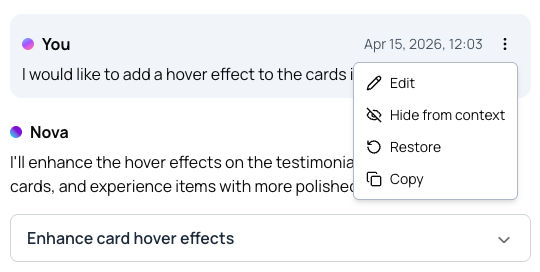
| Menu Action | What it does |
|---|---|
| Edit | Revises the selected prompt and regenerates the results from that point forward. |
| Hide from context | Removes the selected prompt from Nova’s memory so it won’t influence future responses. |
| Restore | Reverts all changes made since the selected prompt. |
| Copy | Copies the prompt text so you can reuse it elsewhere. |
After Nova regenerates the updated prompt history, you can continue refining the results with the prompt text box. If you want to make targeted changes to a specific element, use Edit Mode.
If regenerated content changes more of the project than you expected: